Simple Active Directory and LDAP login for WordPress.

Users log in on the normal WordPress login page with their Active Directory or OpenLDAP username and password. Setup is a short settings screen and a built-in test, and you choose which LDAP groups are allowed in.

  • Active Directory and OpenLDAP
  • WordPress 6.5+ and PHP 8.1+
  • Open source, GPL licensed

Features

Log in to WordPress with LDAP

Connect WordPress to Active Directory or OpenLDAP. Enter your servers and the Base DN where your users are. People then log in on the normal WordPress login page with their directory username and password.

Connections use StartTLS or LDAPS and require a trusted certificate. If a server is down, the next one in the list is tried.

LDAP connection settings
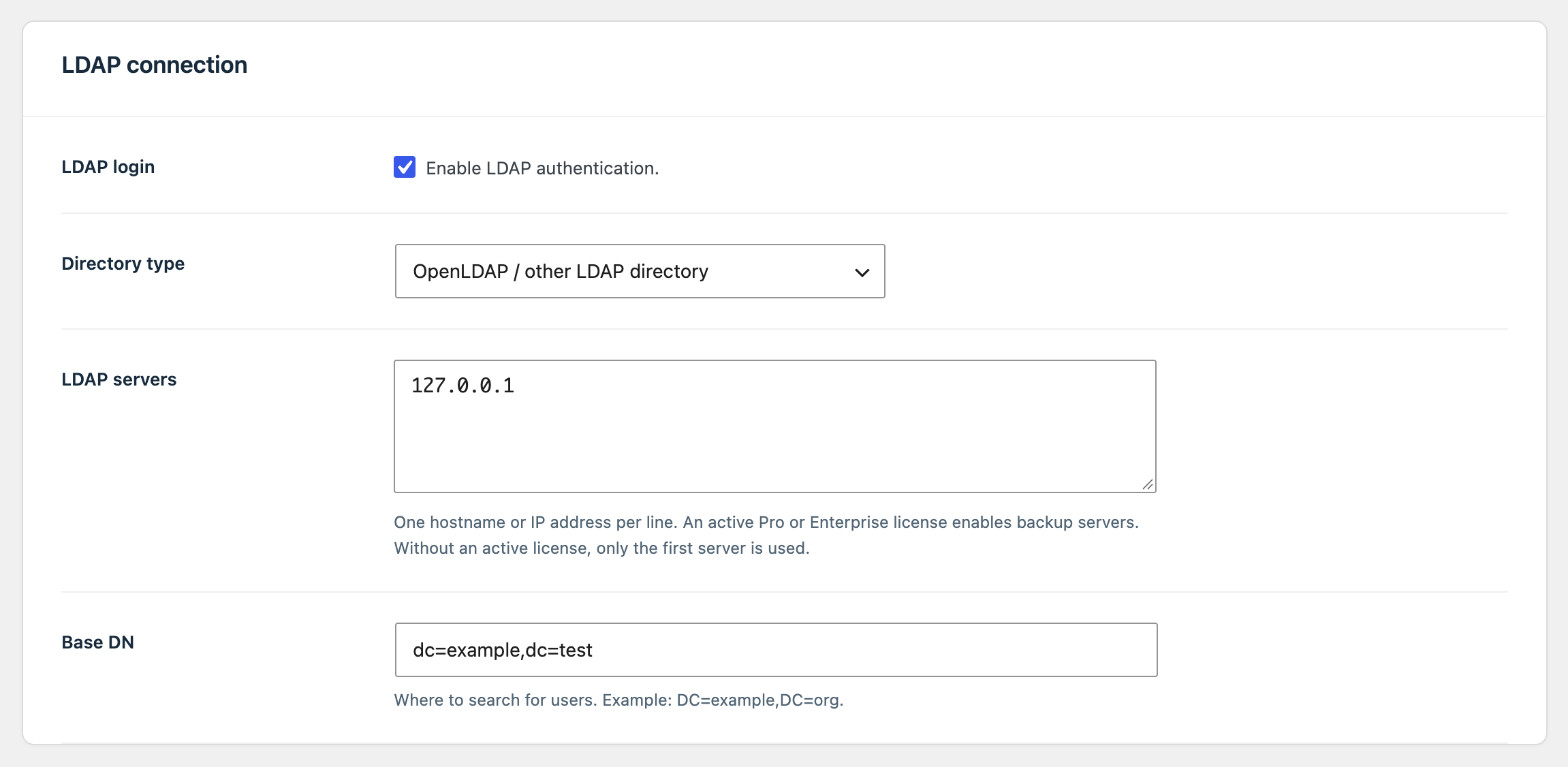
LDAP connection settings: enable LDAP authentication, directory type, LDAP servers, and Base DN.

Choose which groups can log in

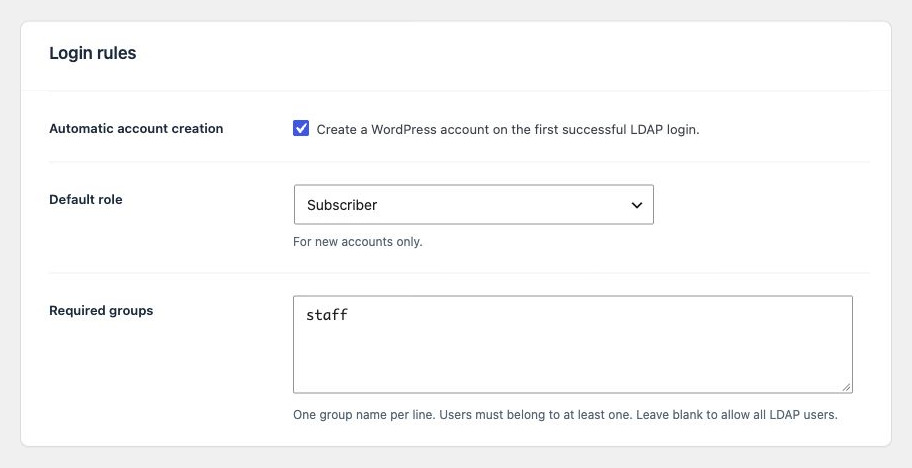
List the LDAP groups that are allowed in. Active Directory nested and primary groups count. Anyone outside those groups can't log in.

WordPress accounts are created automatically the first time an allowed user logs in, with the default role you choose.

Login access rules
Login rules: automatic account creation, default role, and required groups.

Set WordPress roles from LDAP groups

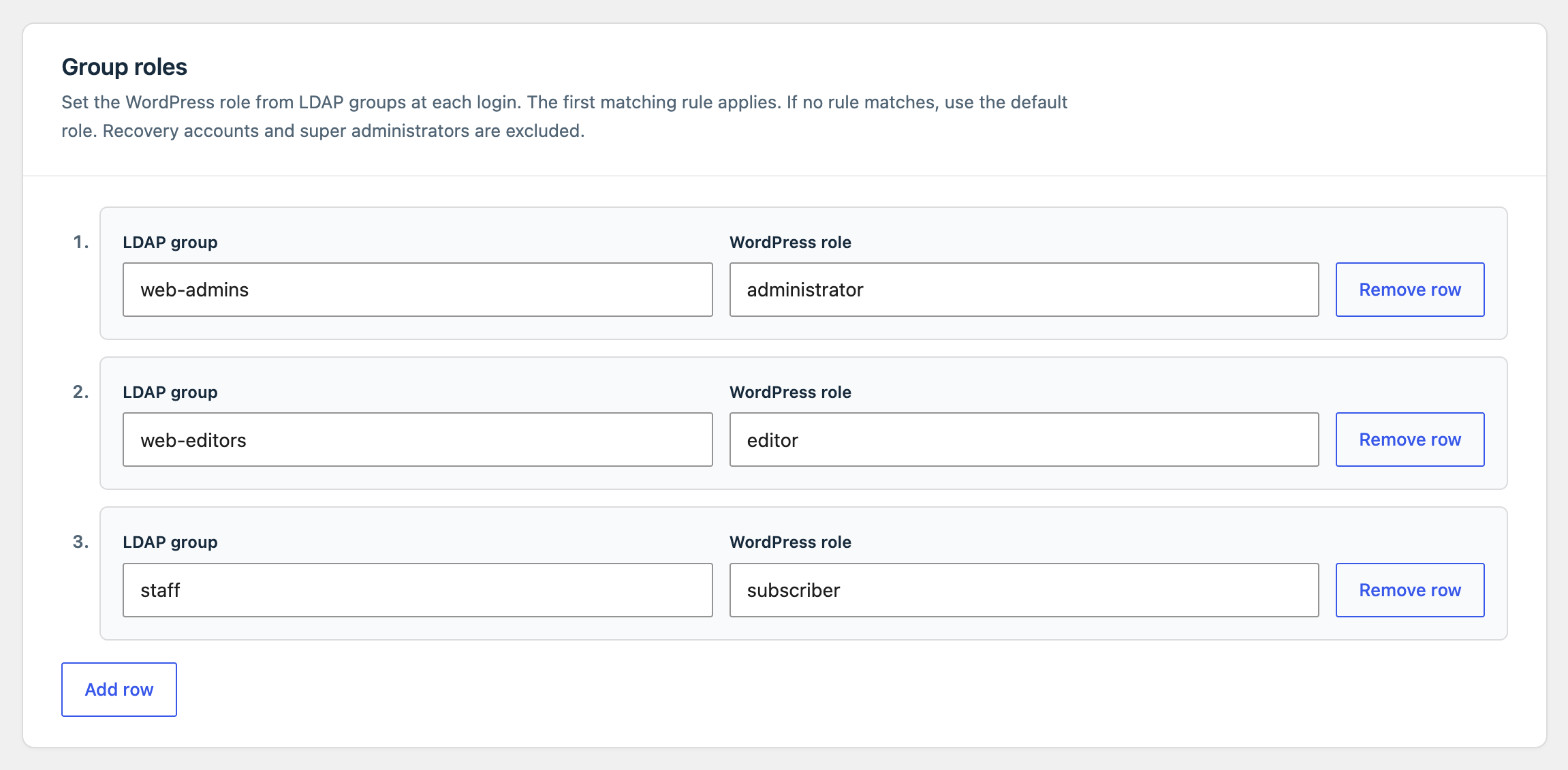
Add a row for each LDAP group and the WordPress role it should get. The first matching group sets the user's role each time they log in, so roles follow group changes in your directory.

Group role rules
Group roles with three rules: web-admins to administrator, web-editors to editor, and staff to subscriber.

Keep user profiles in sync

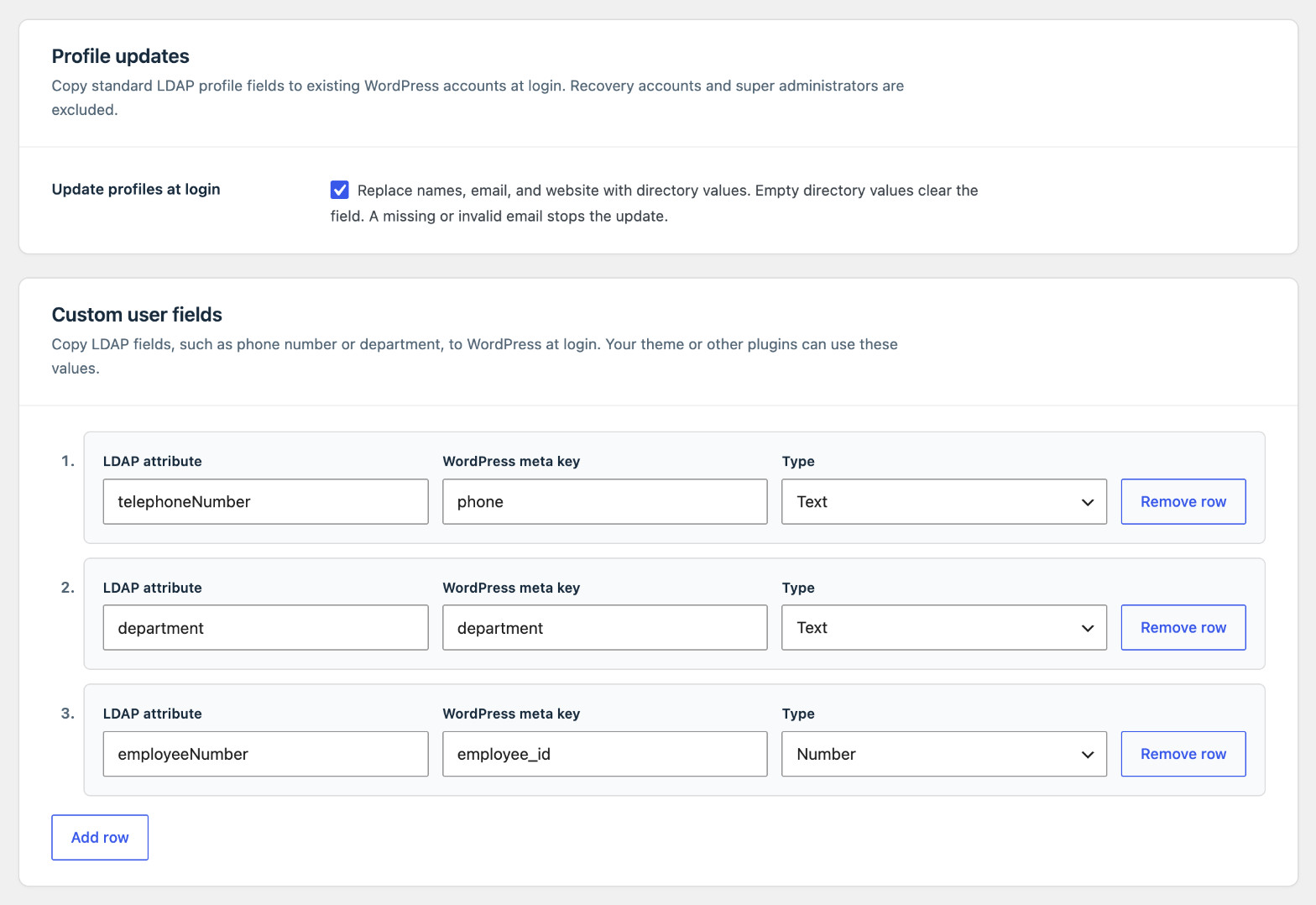
Update names and email addresses from the directory at each login. Copy other LDAP attributes, such as telephoneNumber or department, into WordPress user meta for your theme or other plugins to use.

Profile and custom fields
User data settings: profile updates at login, and custom fields mapping telephoneNumber, department, and employeeNumber to WordPress user meta.

Remove access when someone leaves

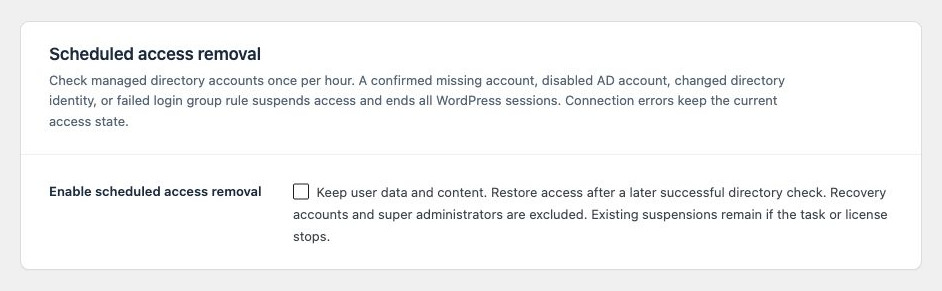
An hourly check suspends WordPress users whose directory accounts were disabled or deleted, and ends their sessions. Their posts and other content stay in place.

A matching hourly import can also create accounts for selected groups before people log in for the first time.

Scheduled account management
Scheduled access removal setting with a description of the hourly directory check.

Single sign-on

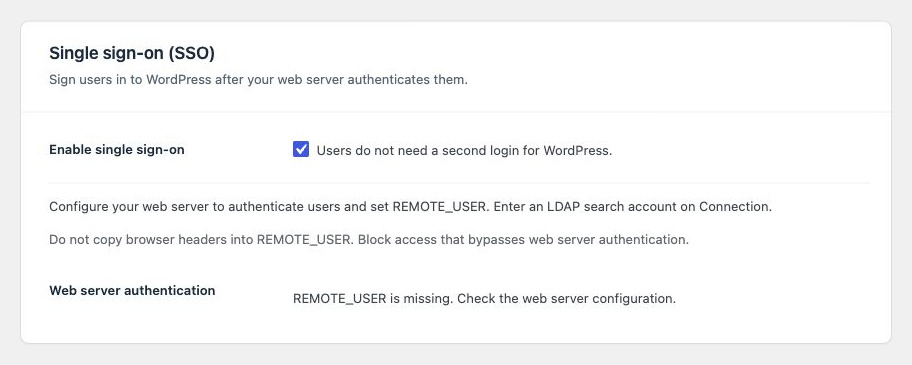
If your web server already authenticates users with Kerberos or NTLM, they're logged in to WordPress without typing a password. The directory account and required groups are still checked.

Single sign-on setup
Single sign-on settings: enable single sign-on and web server authentication status.

Keep an audit log

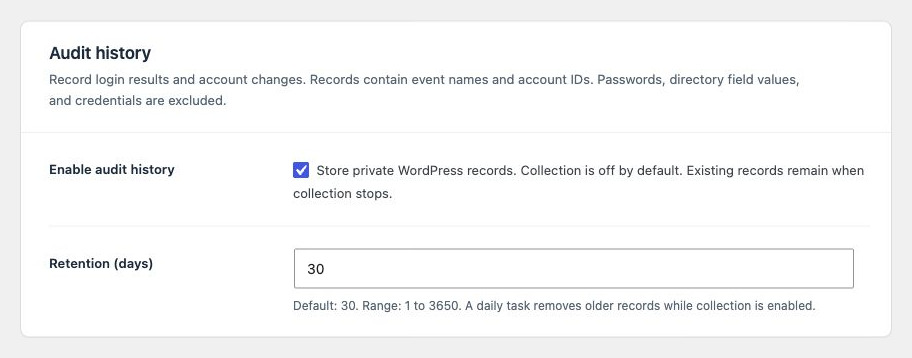
Record logins, failed logins, role changes, account imports, and settings changes. Choose how many days to keep, and export to CSV. Passwords and directory field values are never stored.

Audit history
Audit history settings: enable audit history and retention in days.

Test your settings before you turn on LDAP login

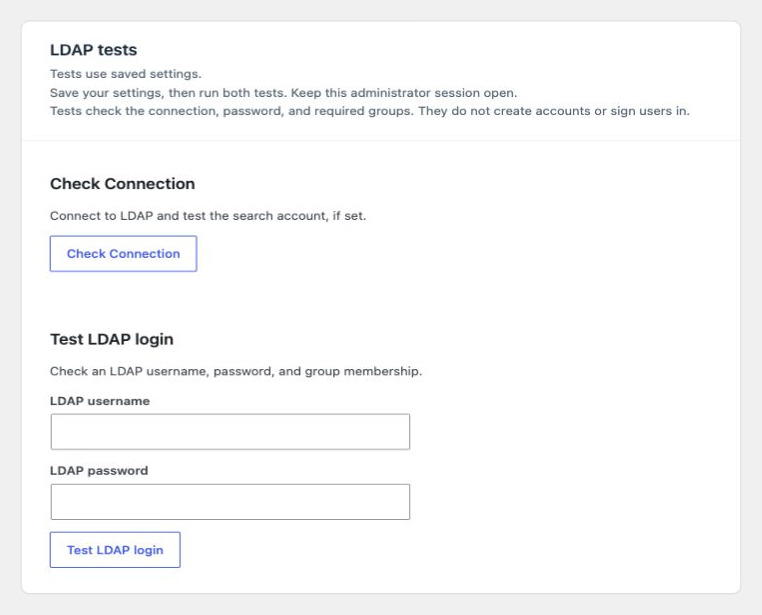
LDAP login stays off until you enable it. The Testing tab checks the connection and a real username and password without creating accounts or logging anyone in.

  1. Enter your directory settings

    Servers, Base DN, and StartTLS or LDAPS.

  2. Choose a recovery account

    A local administrator who can always log in with a WordPress password, even when the directory can't be reached.

  3. Run both tests

    Check Connection, then Test LDAP login with a real account.

  4. Enable LDAP login

    If you ever need to turn it off without logging in, add SLL_DISABLE_LDAP to wp-config.php.

Testing tab: Check Connection and Test LDAP login.

Frequently asked questions

Do users need a separate WordPress password?

No. They log in with their directory username and password. The password is checked against the directory and isn't saved in WordPress. New accounts get a random local password.

What happens if the directory server is down?

The plugin tries the next server in your list. If none respond, LDAP login fails, but your selected recovery accounts can still log in with their WordPress passwords. The hourly access check never suspends anyone because of a connection error.

How do I get back in if I lock myself out?

Log in with your recovery account. If that isn't available, add define( 'SLL_DISABLE_LDAP', true ); to wp-config.php, log in with a local administrator, and fix the settings. Read the lockout guide.

Does it work with WordPress Multisite?

Yes. Network activation applies one set of settings to every site, and group rules can add users to specific sites with a role on each.

What are the server requirements?

WordPress 6.5 or later and PHP 8.1 or later with the LDAP, OpenSSL, and iconv extensions. The WordPress server must be able to reach your directory server and trust its certificate.

How do I upgrade from version 1.x?

Test the upgrade on a copy of your site and keep a local administrator account. If you used single sign-on or custom user fields in 1.x, you need Pro or Enterprise to keep them. Read the upgrade guide.

Set up LDAP login on your WordPress site.

Install the plugin, connect your directory, and test a login. The setup guide covers each step.