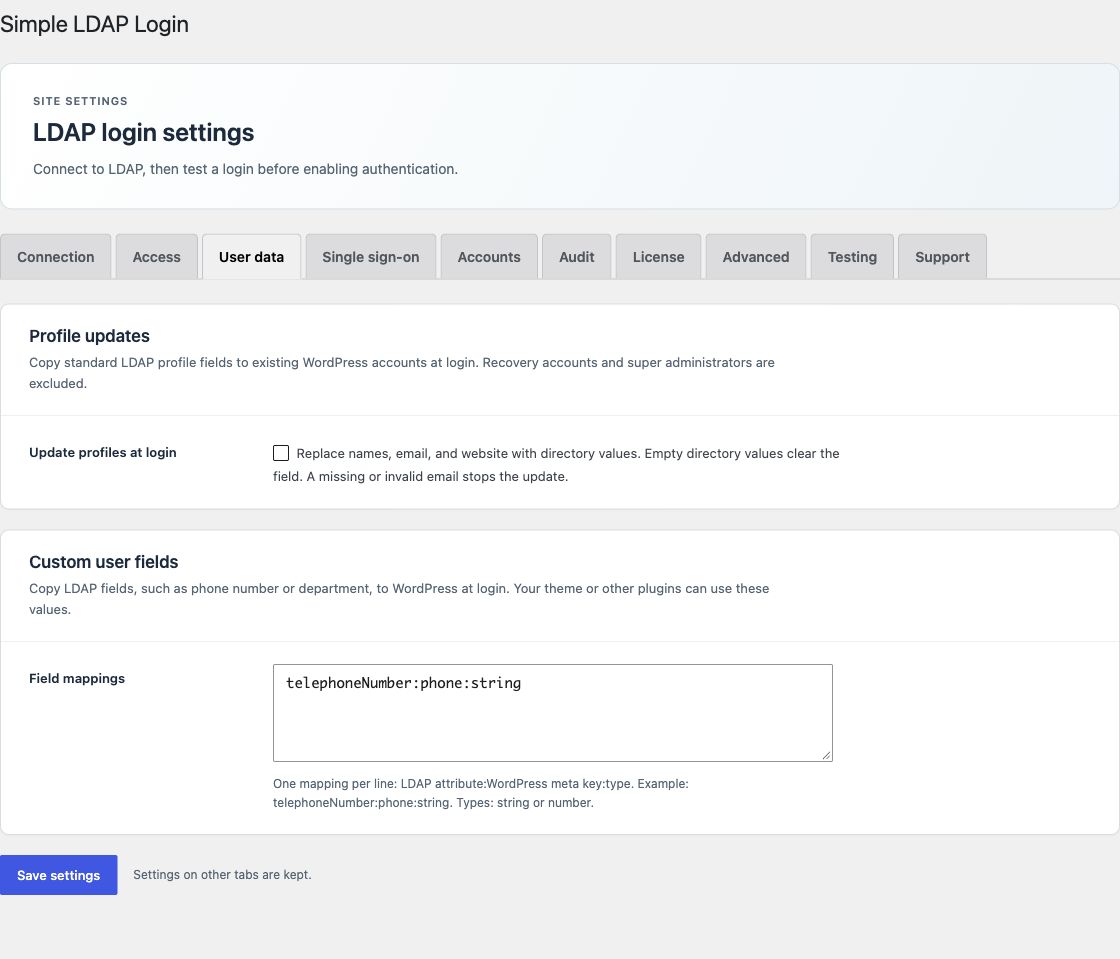
Custom user fields require an active Pro or Enterprise license. Open User data → Custom user fields.
Add a mapping
Enter one mapping per line. Use this format:
LDAP attribute:WordPress meta key:typeFor example:
telephoneNumber:phone:string
department:department:string
employeeNumber:employee_id:number
The LDAP attribute is the source. The WordPress meta key is the base name for storage. Use string for text or number to keep digits only. The number type removes signs, spaces, decimal points, and all other non-digit characters. Use string if those characters matter.
Only the first value of a directory attribute is copied. Protected WordPress account metadata, such as capabilities, cannot be set through a mapping.
How values are stored
With the default suffixes, a phone mapping creates two user meta keys:
phone_ldapcontains the last copied directory value.phone_wpcontains the editable WordPress value.
Your theme or another plugin can read phone_wp with the WordPress user metadata API. The plugin does not add a public staff directory or a profile editor.
Update behavior
When the directory value changes, the plugin updates both keys. If it does not change, an edit to the WordPress value is kept. Selected recovery accounts are excluded.
Mappings run after a verified directory account is loaded. They can run at password login, server SSO, and scheduled import. A login test does not write user data.
Change the key suffixes
On Advanced → Custom field storage, change LDAP value suffix or WordPress value suffix only if your integration needs other key names. Defaults are ldap and wp. Changing a suffix changes where later values are stored; update the code that reads those keys.
The legacy sll_user_meta_data filter remains available in Pro. See developer hooks.