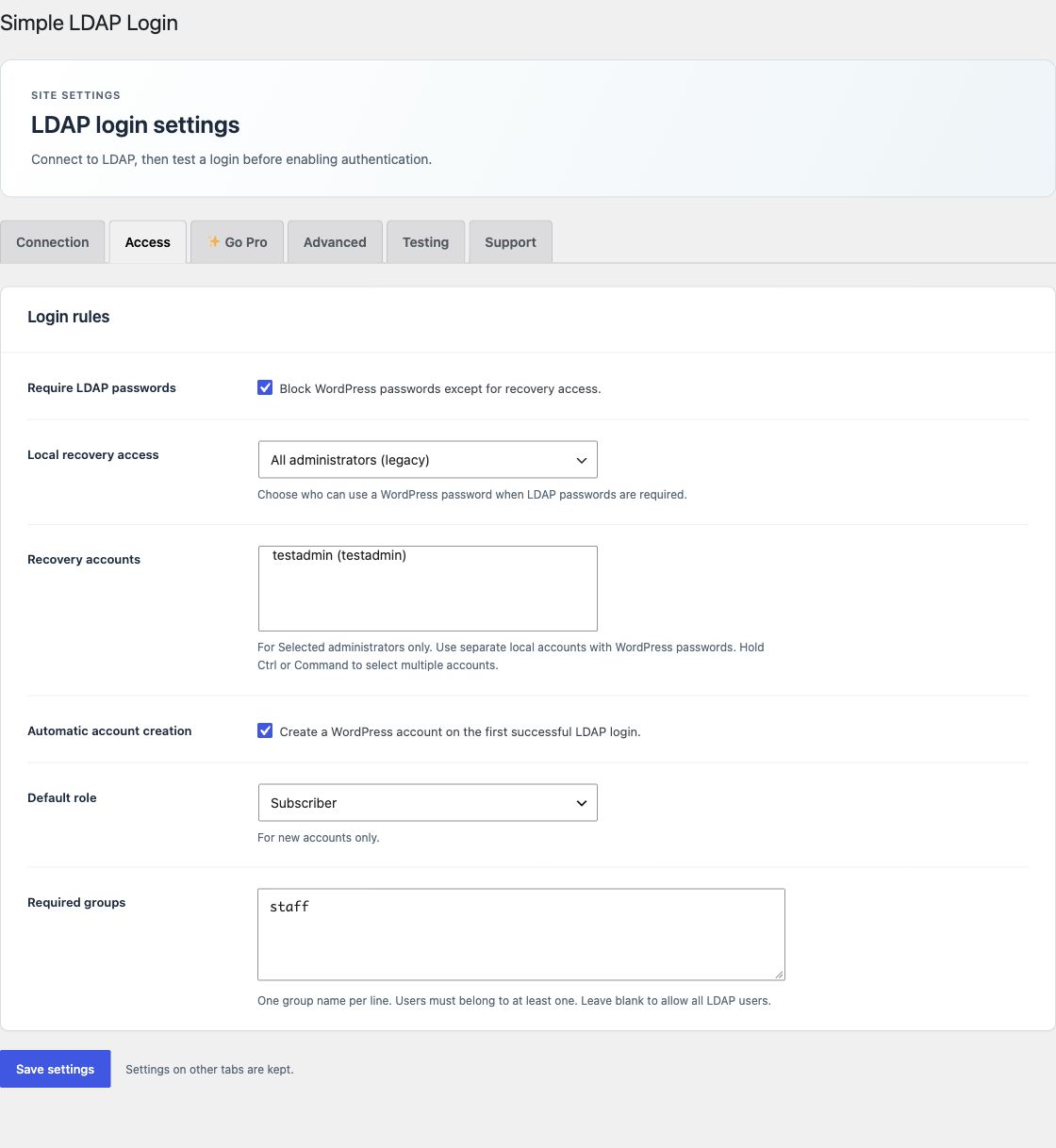
If LDAP login fails for everyone, including you, use these steps in order. Each one gets you back in without a directory login.
Get back in
1. Log in with your recovery account
A selected recovery account always uses its WordPress password, even when the directory is down or LDAP settings are wrong. Log in on the normal WordPress login page with that account's WordPress username and password.
2. Turn off LDAP login in wp-config.php
If you don't have a recovery account, ask someone with file access to add this line to wp-config.php before WordPress loads:
define( 'SLL_DISABLE_LDAP', true );- Save the file.
- Log in with a local WordPress administrator password.
- Correct the LDAP connection, group, or recovery settings.
- Run the connection and login tests.
- Remove the line and test normal login in another browser.
The line stops LDAP password login and server SSO. It also stops access suspension filters. It does not reset a forgotten WordPress password.
3. Rename the plugin folder
If you can't edit wp-config.php, rename the simple-ldap-login plugin folder through your host's file manager. WordPress then skips the plugin. Log in with a local administrator password, restore the folder name, correct the settings, and test before staff use it.
Prevent a lockout
Keep a WordPress administrator account that is separate from directory users, and select it as a recovery account before you turn on LDAP login.
- Open Access → Local recovery access.
- Select Selected administrators.
- Select the separate account under Recovery accounts. For network settings, select an eligible super administrator.
- Save, then log in with that account in another browser to confirm it works.
A recovery account uses local WordPress authentication only. It is excluded from LDAP account creation and cannot be signed in through server SSO. It is also excluded from role rules, profile updates, scheduled account management, and multisite membership rules.
Off removes the recovery exception. Legacy keeps the older all-administrators policy. Use either only with a tested recovery procedure.
Deactivation and uninstall
Deactivation keeps settings. Uninstall removes plugin settings and saved LDAP credentials only if an administrator selected Delete settings when removing the plugin for that scope. Uninstall keeps WordPress users, user data, content, and audit records. It does not connect to LDAP.
Disabling scheduled removal or losing a license does not clear existing account suspensions.